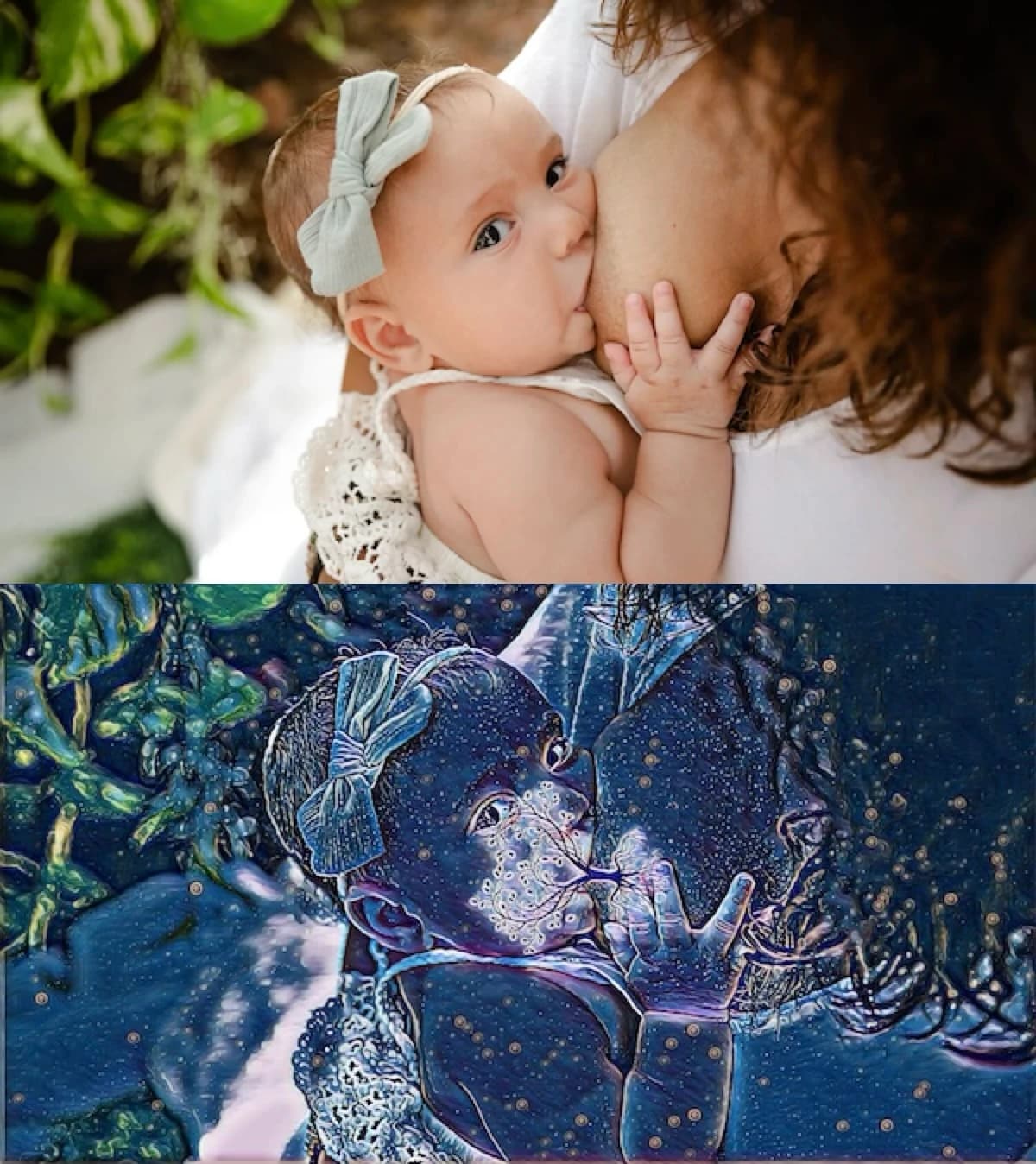
Picsart is a capable general-purpose photo editor, and plenty of the beautiful Tree of Life brelfies you've seen were made in it. If you already have the app and want to do it manually, here's the full method — start to finish.
8 steps
The Picsart method, step by step
- 1
Install Picsart and open your photo
Download the Picsart app (iOS, Android, or web), create an account if prompted, then tap the plus button and select your breastfeeding photo.
- 2
Open the Stickers menu
Tap Stickers in the bottom toolbar and search for "tree of life" to browse overlay options.
- 3
Add a tree of life sticker
Pick a tree sticker with a clear trunk and spreading branches, then tap to add it to your photo.
- 4
Position, resize, and rotate the tree
Drag the tree so the trunk sits over the latch, with roots on your chest and branches toward baby. Pinch to resize and use the rotate handle to angle it.
- 5
Lower the sticker opacity to blend it
Open the sticker's Opacity slider and reduce it until the tree blends naturally into the photo.
- 6
Apply a filter or effect
Go to the Effects (FX) menu and try filter categories like Magic or Galaxy until you find a look you like.
- 7
Add an optional lens flare
Add a light or lens-flare sticker at the point of connection and adjust its color and position for a glowing finish.
- 8
Export your image
Tap the export or download button and save the finished photo to your device (watch for Picsart's watermark on free exports).
Heads up: On Picsart's free plan, some stickers and effects are reserved for Gold, and exports can include a watermark. That's a lot of steps — and possibly a subscription — for one photo.